
Voice Recorder App For Interviews, Meetings, & Evidence
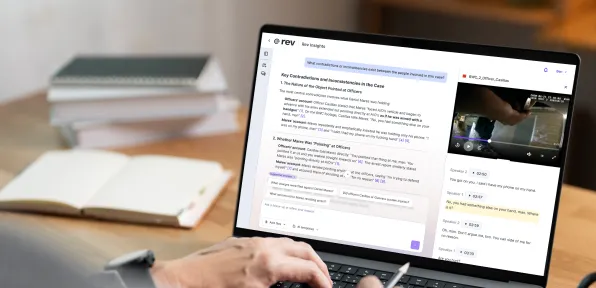
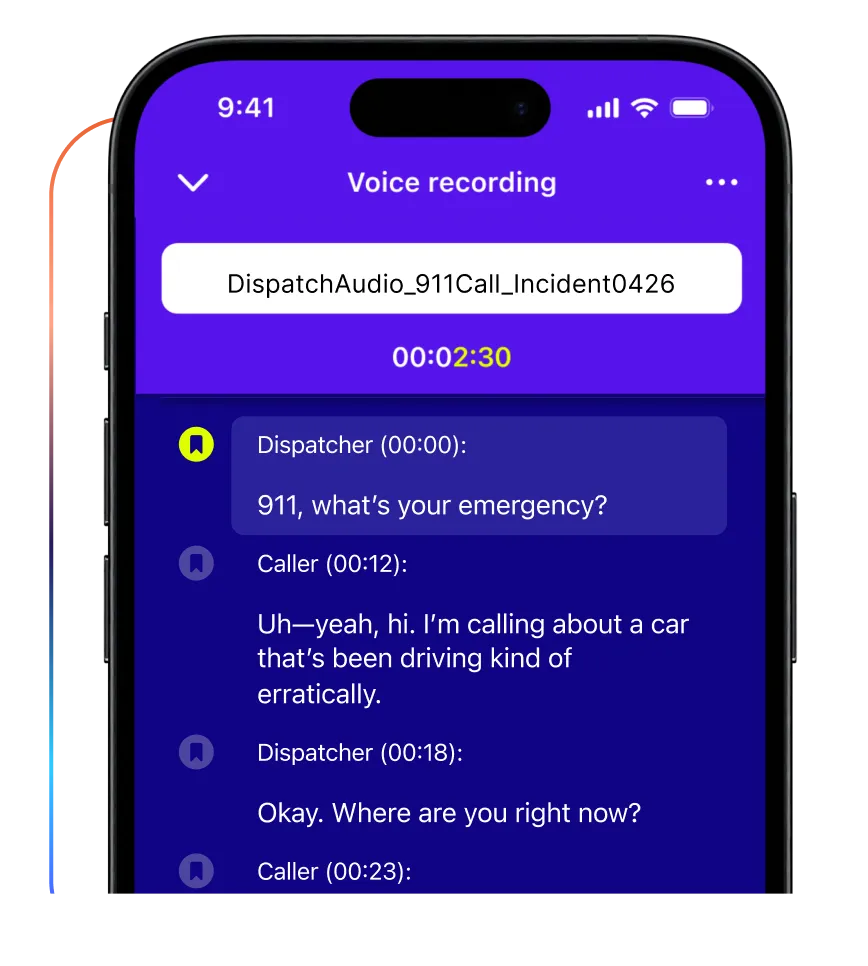
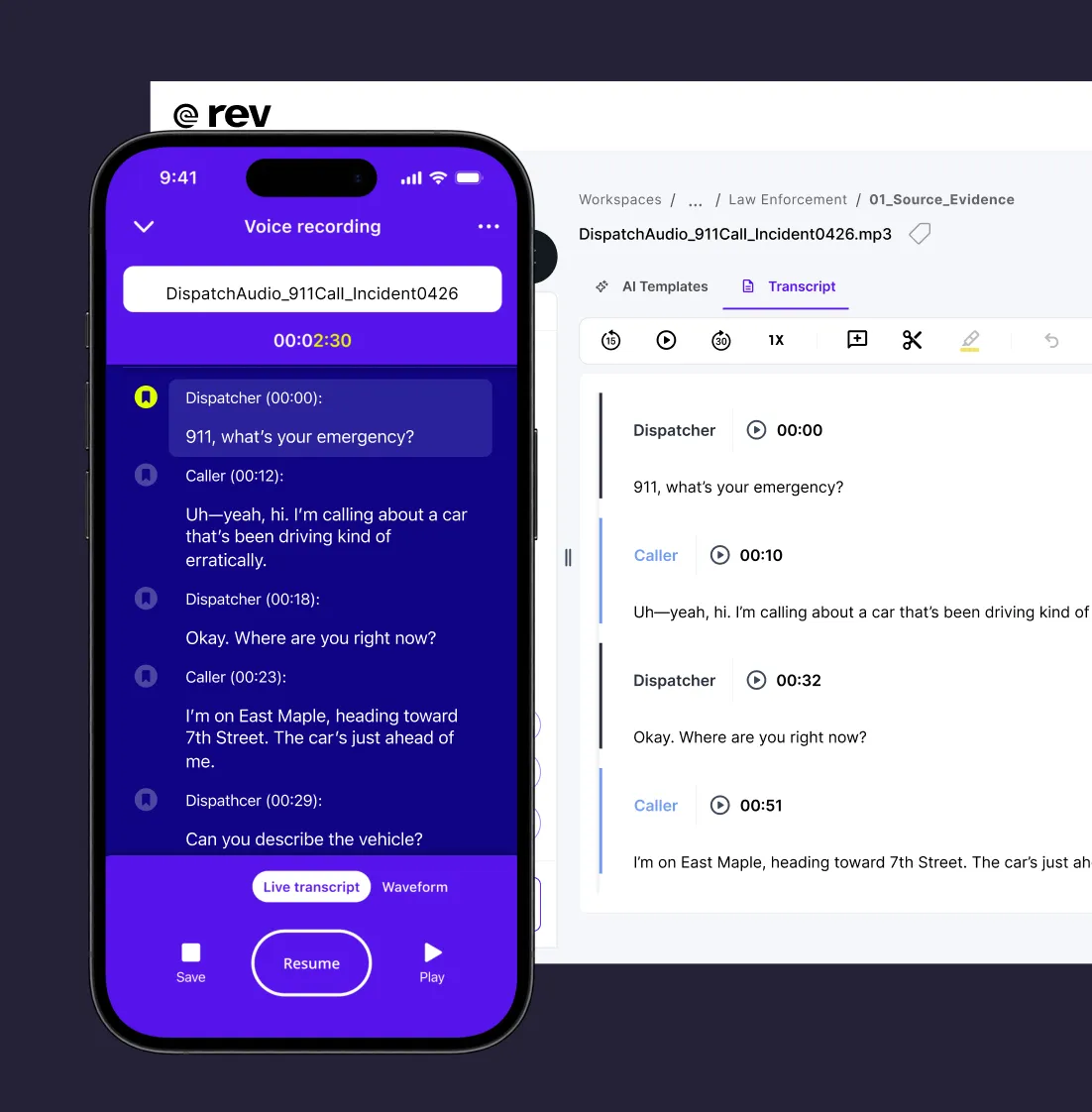
Capture high-quality audio in any environment and get a live transcript as you record that you can edit, analyze, and share on-the-go.


Everything You Need, Right From Your Phone
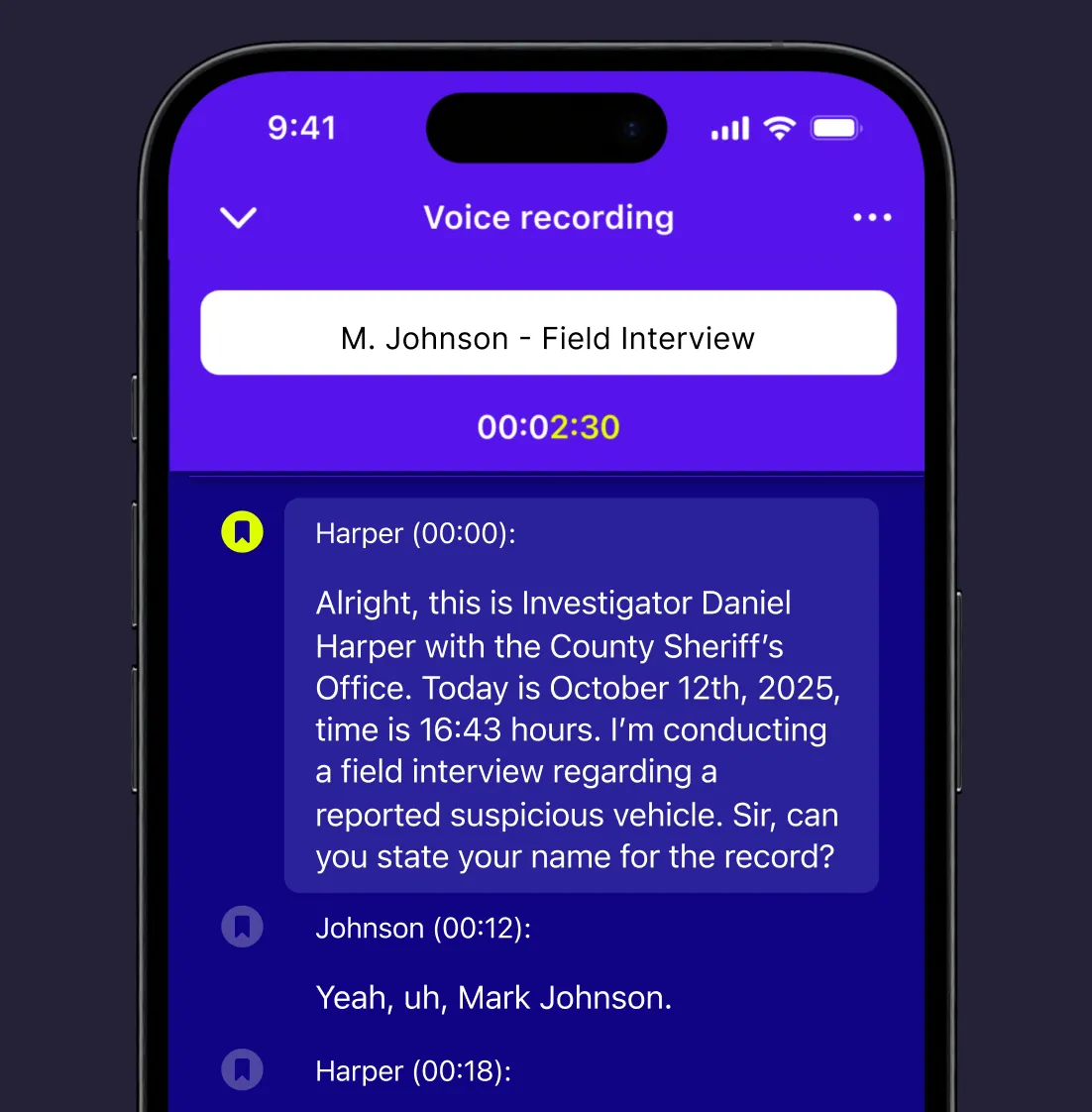
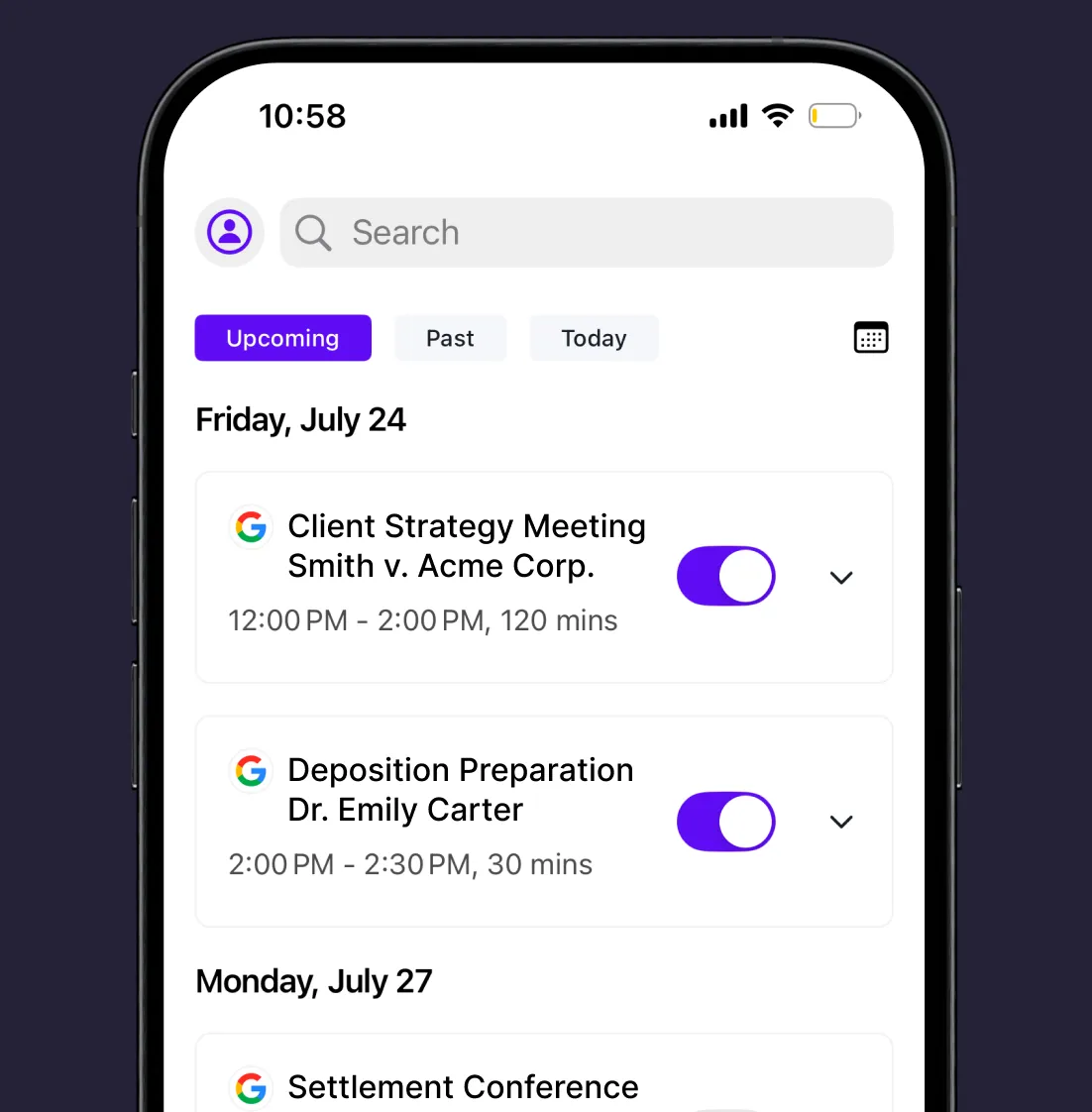
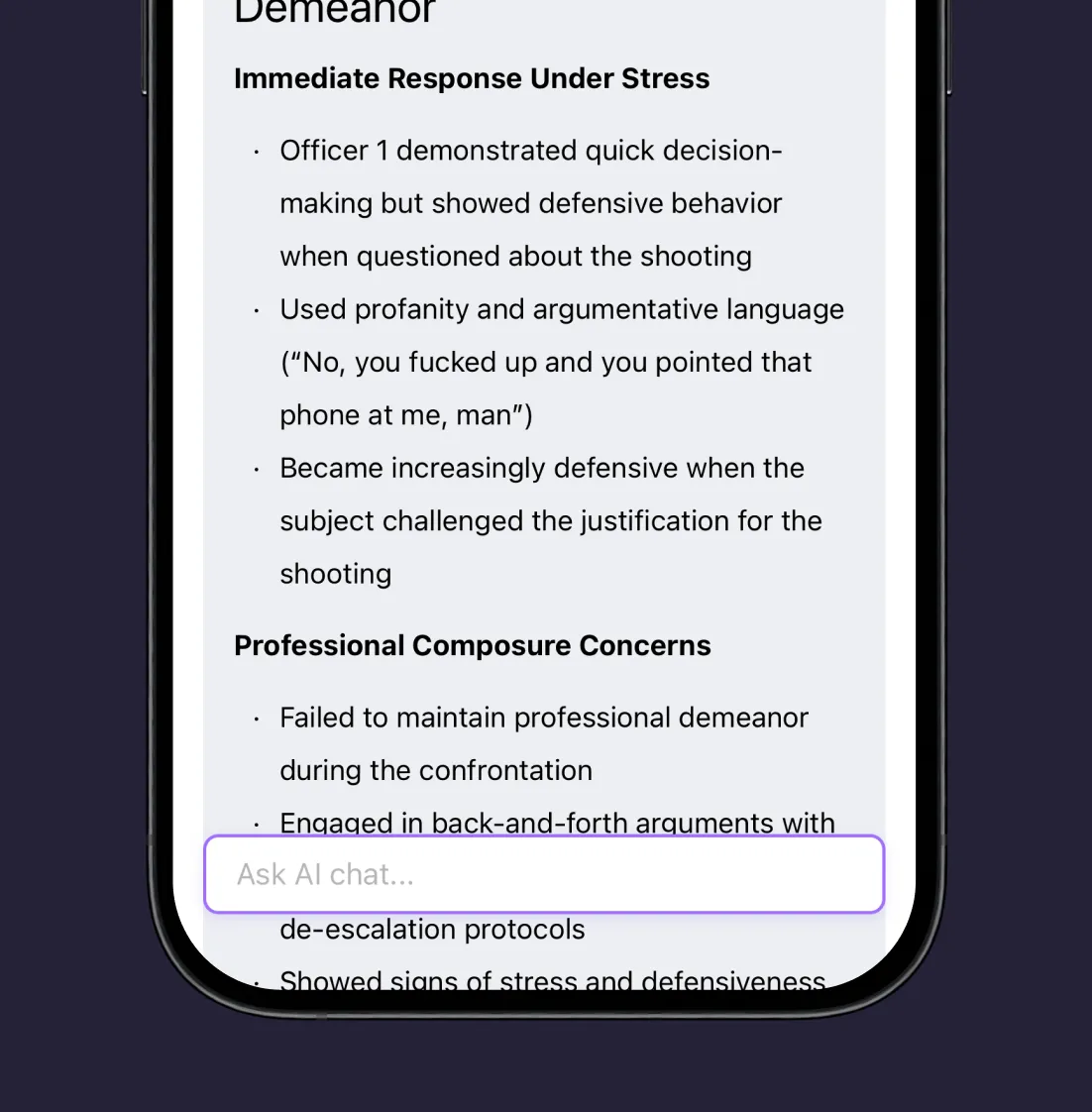
Capture the interview, analyze the evidence, and get it into the case file — before you're back at your desk.
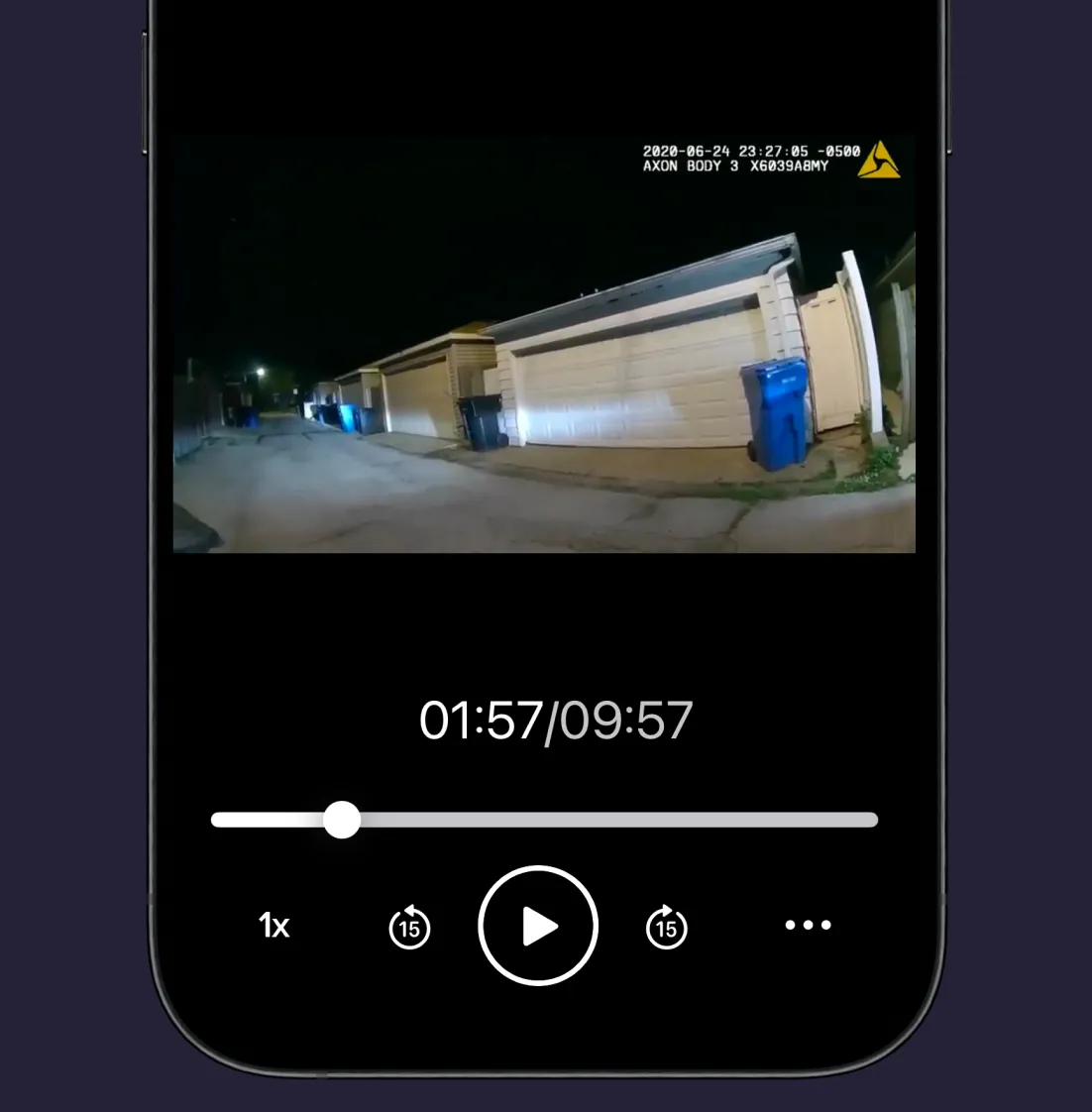
Trusted for Interviews, Investigations, And Case Preparation

I conduct interviews for my job and swear by this app. I use the AI transcripts which give me all I need to get my reports done. All at a great price!

This app is definitely the top best speech to text and audio apps. I’ve downloaded. I’ve tried many other ones and they have all not been able to even get close to how well this app works. It’s user friendly and keeps up with fast conversations. Thank you for creating an app that meets my kind of high standards.
A favorite productivity hack! As one who is constantly dictating materials for development, Rev has been a game changer. From brain storming sessions, to important meetings, to developing my own work flows, shaping talks, sharing research. This tool has been a helpful one for me to use. I save countless hours with Rev.
Love this App! It is a great tool for keeping track of important meetings; ones which warrant careful note taking. It is easy to use and easy to share with the other participants.
I’m a regular — sometimes daily — user and Rev is terrific in every way. Great interface, mobile app, and darn near instant turnaround. Don’t know what I’d do without them.
Great for lawyers!!! great for dictating and giving myself and my team a head start on drafting time sensitive filings and correspondence.
Move Cases Faster With A Rev Subscription
Subscribe for deeper analysis, savings on transcription, and a mobile app that stays in sync with your case, wherever you're working.
Rev App FAQ
Is This A New App?
Yes. The new Rev app replaces our previous voice recorder app. If you're using the old app, download the new one from the App Store or Google Play and sign in with your usual Rev login.
Will My Files Transfer To The New App?
Yes. Everything uploaded to your Rev account, including recordings, transcripts, and files, appears in the new app automatically.
What Happens To The Old App?
The old app will retire on October 31. After that, it will be removed from the app store and will no longer receive updates. We recommend switching to the new app now.
Can I Record Without An Internet Connection?
Yes. Rev records and saves to your phone with no signal, then uploads automatically once you're back online.
What Happens If I Get A Call While Recording?
Your recording keeps going. Calls, alarms, and notifications won't stop it. You can choose to dismiss alerts or keep going.
How Do I Upgrade My Subscription?
Subscription upgrades are done from a web browser, not the app. Go to rev.com, sign in, open Account Settings, select Manage Subscription, then choose Modify Plan. On shared accounts, only the Admin and Billing Manager can manage billing.
How Do I Use My Rev Subscription In The App?
Sign in with your Rev login and your subscription will be active in the app.
Who Can I Share Files With?
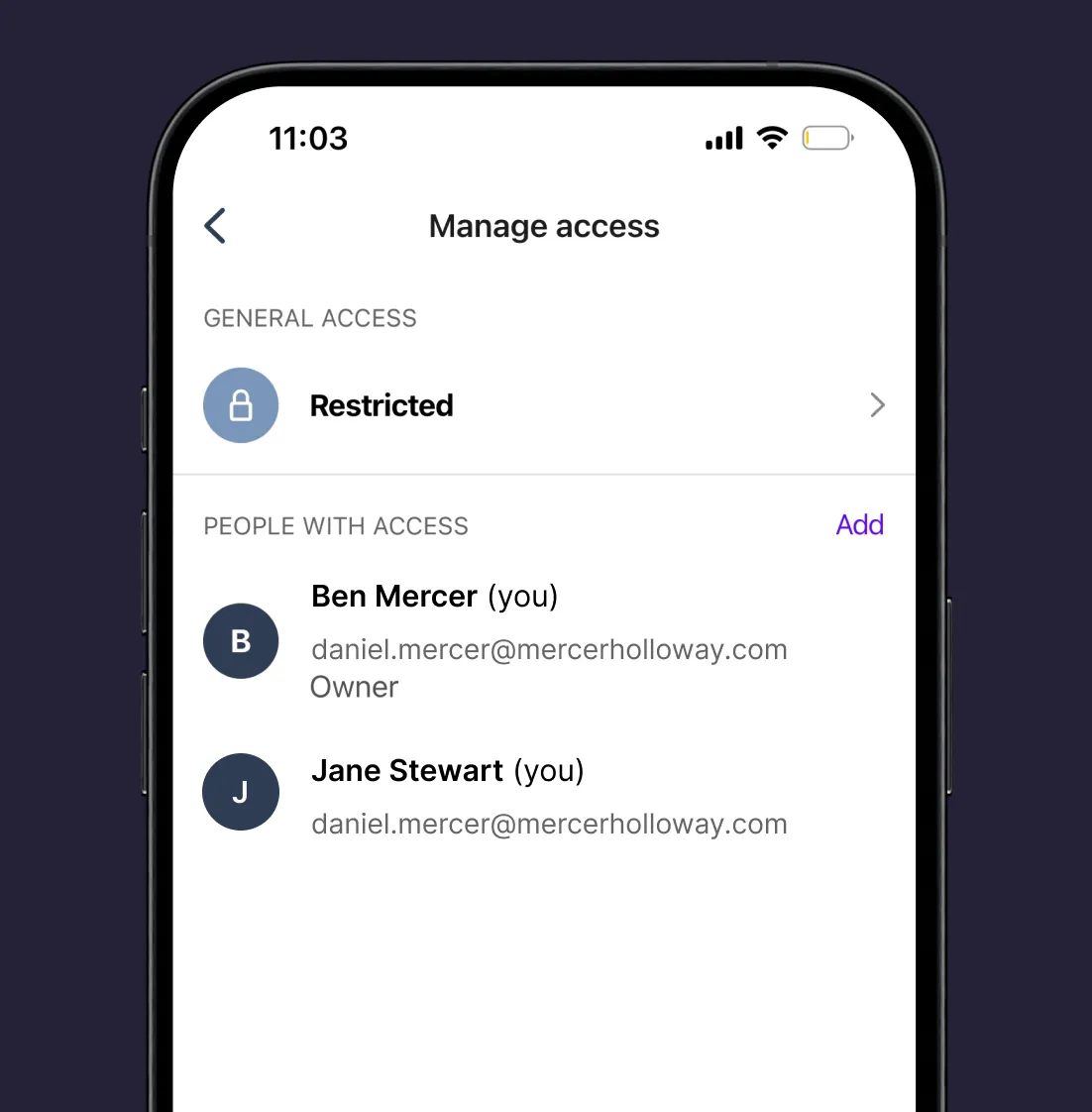
You choose who has access and what they can do. Invite specific people as viewers (can view) or editors (can make changes), or copy a link.
How Do I Record?
Open the app and tap the purple button in the center to begin recording. Rev starts saving the recording to your phone right away, with or without signal, and keeps going through calls, alarms, and notifications. You can check that it's still running from your lock screen. When you're done, tap Stop. Your recording uploads to your Rev account automatically (once your signal returns), so it's in the app and on rev.com.
How Do I Order a Transcript From the App?
You don't need to. With the Auto Transcribe with AI setting turned on, every recording and upload is transcribed automatically once it reaches your Rev account. When you need a 99%+ accurate human transcript, sign in at rev.com, open the file, and order human transcription there. Ordering human transcripts directly in the app is coming soon.
Other Free Online Tools
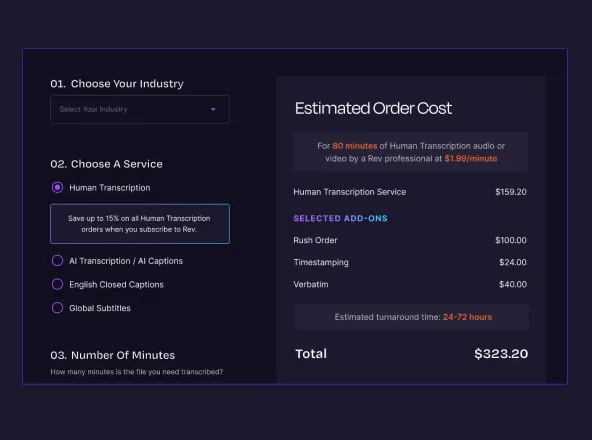
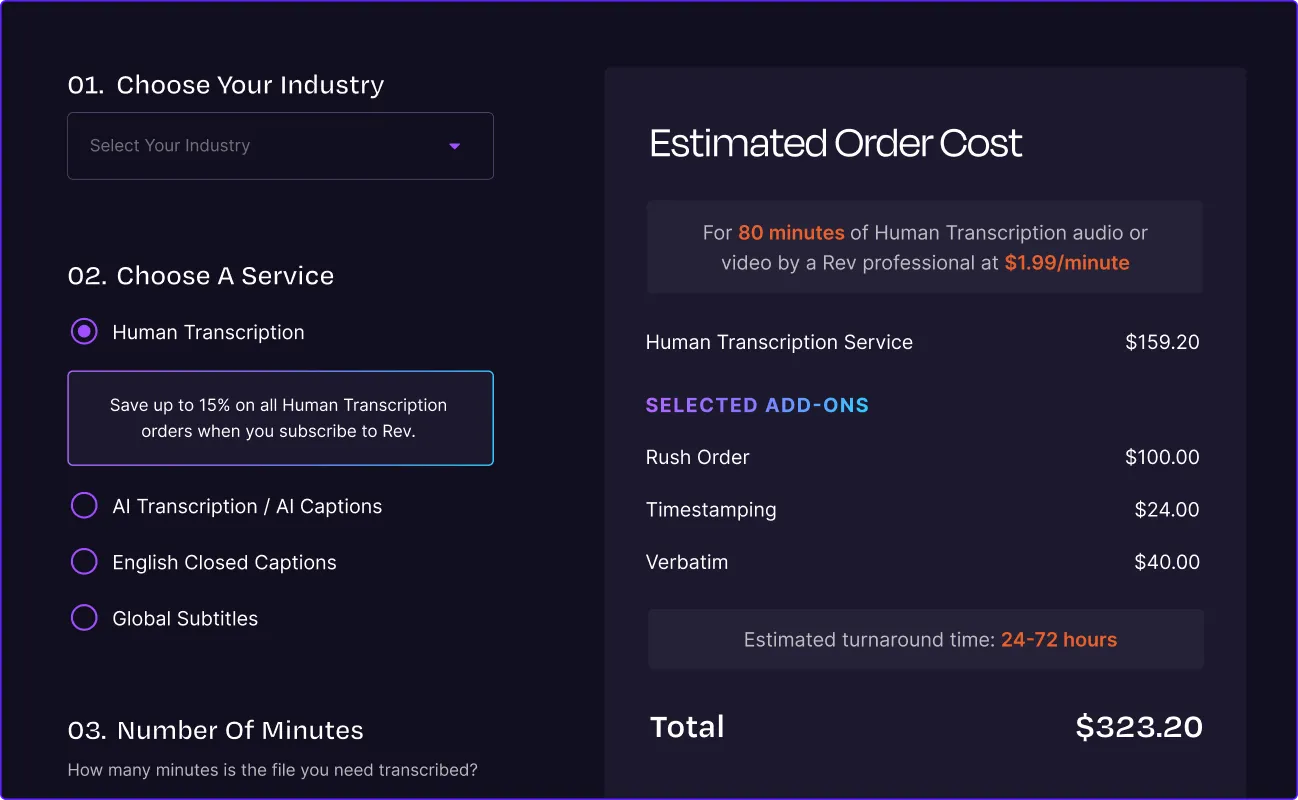
Pricing Calculator
An easy-to-use calculator that provides transparent pricing. Quickly estimate costs for human and AI transcripts, captions, and subtitles in just seconds.
Audio Trimmer & Cutter
The Rev Audio Trimmer & Cutter is 100% free to use and allows you to trim and cut out excess audio from several types of audio and video files.

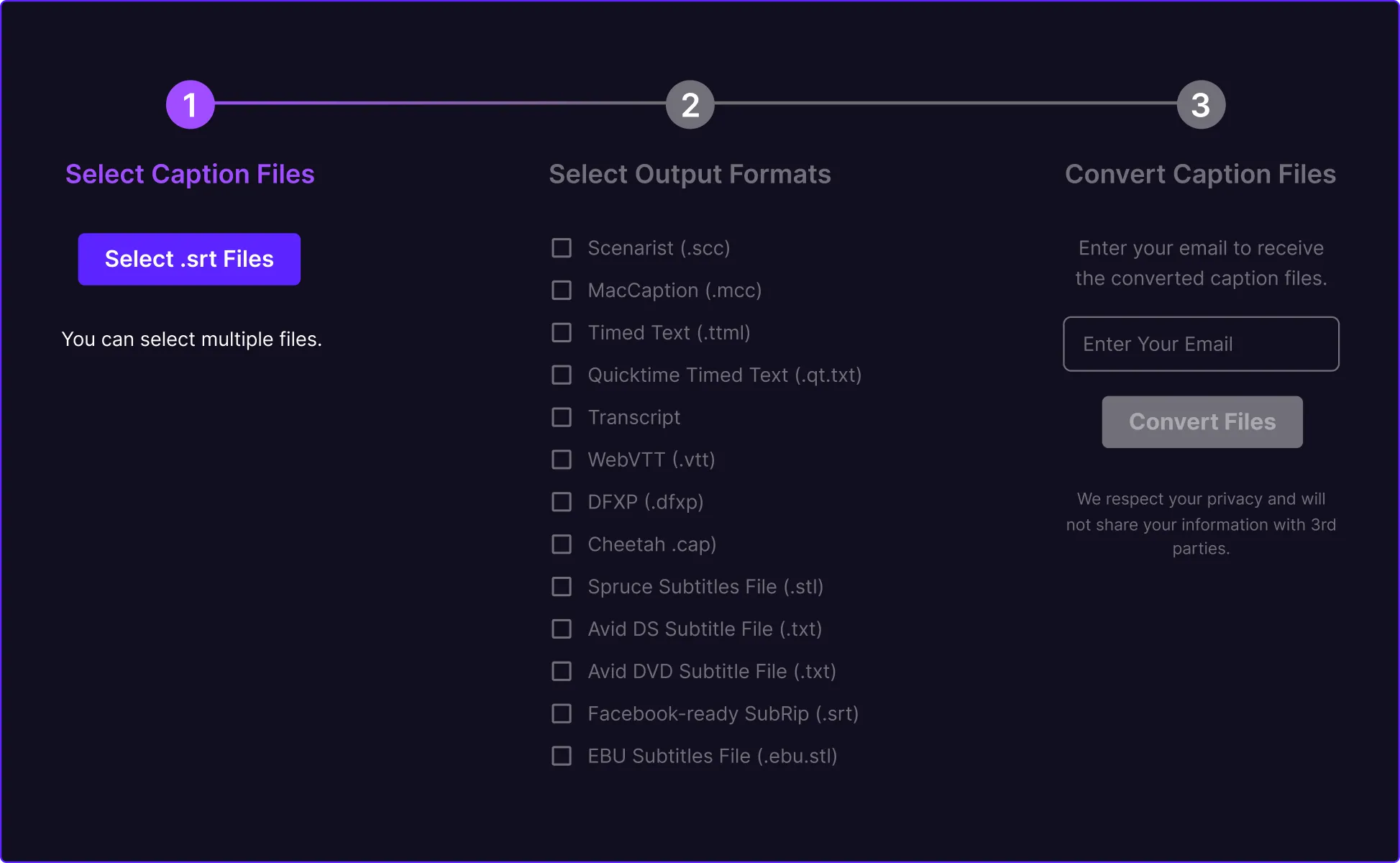
Caption Converter
The Rev SRT Caption Converter is totally and completely free to use and allows you to upload your SRT/SubRip file straight into the tool and output TXT, VTT, SCC, MCC, STL, TTML, and more.